Pulse Menu
This screen allows you to review today's data. The filter region is where specific criteria is selected and applied to generate the Pulse report.
What do you want to do?
Tasks in this Topic Include:
Related Tasks:
Pulse Reports
Generate Charts and Report
- Select Metrics from the left-navigation menu.
- Select Pulse.
- Select the applicable resource from the Target Resources drop-down menu.
- Select the Active after: date from the drop-down menu.
- Select a period to reference from the Reference Period drop-down menu.
- Select the auto-refresh rate from the Rolling View drop-down menu.
- Select the status from the Status drop-down menu.
- Select Apply.
NOTE: To
clear all fields, click the Reset button.

View Report
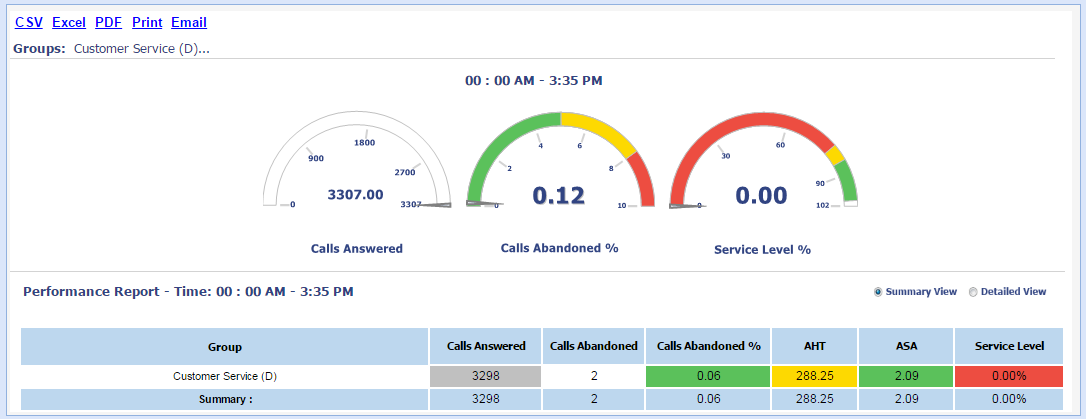
NOTE: Use the view options to
review different levels of detail.
- Select the Summary View radio button to review the Pulse target resource details.
- Select the Detailed View radio button to review Pulse details by Supervisor/Agent.
Export Charts and Reports
Select the CSV, Excel, PDF, Print, or Email link from the charting region.